Window Technical Support

  • Subscribe to our RSS feed.
  • Twitter
  • StumbleUpon
  • Reddit
  • Facebook
  • Digg

Wednesday, 3 July 2013

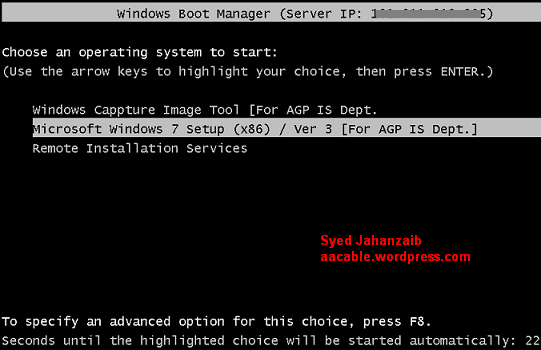
Windows Deployment Services (WDS)

Posted on 22:47 by Unknown


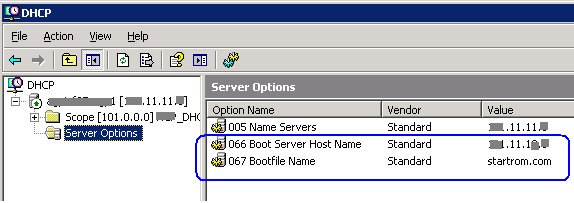
# DHCP SERVER SETTINGS

If WDS and DHCP Server are NOT on same machine, Use the following Setting to inform client from which server to boot.
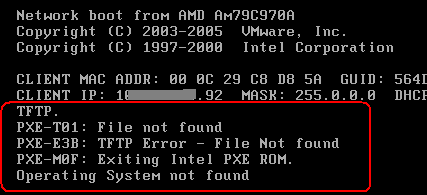
# TFTP ERROR:

After configuring WDS, you may get following error while trying to boot from Network.
.
Solution : You have to configure boot ROM in WDS console to tell Client which boot ROM file to use.
>
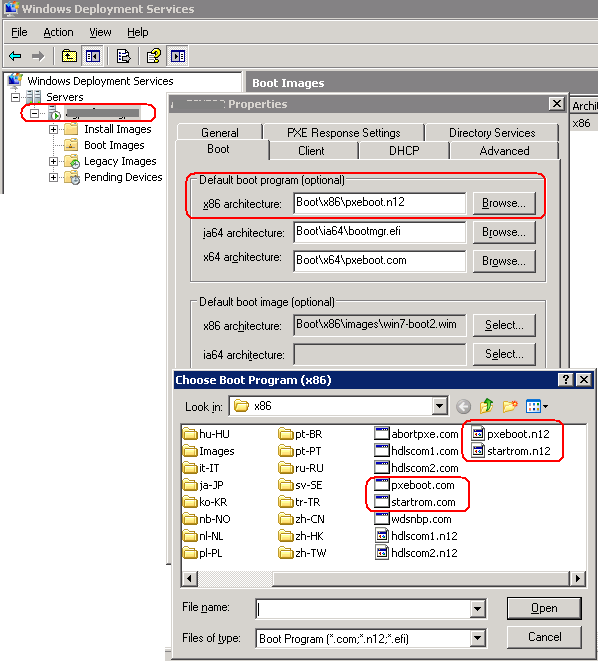
Note: startrom.com & pxeboot.com Boot ROM files can found at this location
\\WDS_SERVER\RemoteInstall\Boot\x86
# startrom.com is suitable if you have only legacy images on your WDS Server.
# pxeboot.com is suitable if you have both legacy WinXP/ERD/Acronis and Windows 7 images configured on your WDS Server.
TIP: You can also use startrom.n12 & pxeboot.n12 If you want to directly boot to WDS skipping F12.

Howto Add Drivers in XP Image (Legacy)

First create following folder structure
\$OEM$\$1\Drivers
in your Windows XP RIS image location e.g:
\\wds_server\RemoteInstall\Setup\English\Images\WINDOWS-XP-SP3\i386\$OEM$\$1\Drivers\
Copy your network card driver here. (in drivers folder)
Now open unattended file like winnt.sif or ristndrd.sif in notepad
(Depend on your deployment structure)
e.g:
WDS_SERVER\RemoteInstall\Setup\English\Images\WINDOWS-XP-SP3\i386\templates\
Add following lines in [Unattended] section
[Unattended]
DriverSigningPolicy=Ignore
OemPreinstall=yes
OemPnpDriversPath=Drivers\Nic
Make sure there are no duplications.
Restart WDS Service.

Adding ERD COMMANDER 2007 in WDS

Simply Add Windows 2003 Standard Edition  from WDS Legacy Console,
Now Copy I386 folder from ERD folder to WDS windows 2003  image folder. If it asks for Overwrite , Select Yes.
Now  add the /minint synatx in this file
\\wds_server\RemoteInstall\Setup\English\Images\ERD\i386\templates\ristndrd.sif
[SetupData]
OsLoadOptions = “/noguiboot /fastdetect /minint”
To add driver in ERD Commander, copy your network driver in
(I don’t know the exact path, so copy it in all possible folder, some1 please point which exactly should these files be pasted in, i guess only system32 is enough)
\\wds_Server\RemoteInstall\Setup\English\Images\ERD\i386
\\wds_Server\RemoteInstall\Setup\English\Images\ERD\i386\system32
\\wds_Server\RemoteInstall\Setup\English\Images\ERD\i386\system32\drivers

Add Win7 Boot Image:

Following is an excellent guide on howto add Windows 7 Boot Image in WDS
http://www.windows-noob.com/forums/index.php?/topic/261-how-can-i-capture-an-image-using-wds/

Add Drivers in Windows 7 Boot Image:

First copy boot.wim from windows 7 CD to your desktop.
Now we have to mount this image in any temporarily directory,
Then add drivers, then commit change,
Now dismount this image,
Now copy it to any folder in WDS server,
From wds console, replace current boot image with this new image. The traditional way is to use the DISM tool provided with your win7/vista, but the easiest way to do is to use 3rd party GUI tool (Free edition).
Download DISM GUI tool from
Mr Jinje DISM Tool™
http://www.msfn.org/board/topic/138804-mr-jinje-dism-tool/
Now first copy the boot.wim from the wds server or from the windows 7 dvd from \sources\ folder.
Now open the Jinje DISM Tool, Click on MOUNT WIM, select boot.wim , and mount it in any temp folder, e.g: c:\wds_temp_mount_dir
Now Click ADD DRIVERS, point it to folder where your windows 7 drivers are located. It will auto add it to boot.wim.
Now Click on COMMIT WIM, it will write changes to this boot.wim
Now click on DIS-MOUNT WIM.
Copy this updated boot.wim to wds temporarily directory.
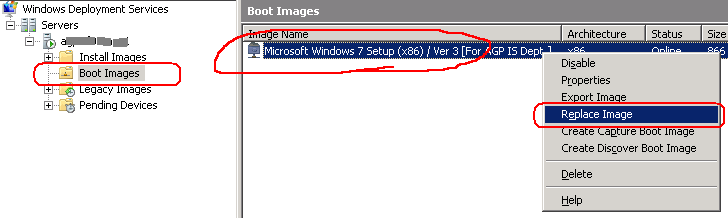
From WDS Console, replace current boot image with your newly updated image you copied in temp folder of wds.
.

Final ~ Screenshots :) <WDS running in Mixed Mode>

.
Read More
Posted in | No comments

Thursday, 27 June 2013

List of Server Role services in Windows Server 2008 R2

Posted on 03:34 by Unknown
There are 17 Roles listed in the Server Manager of the Windows Server 2008 R2.
The following server roles are available in Windows Server 2008 R2 Enterprise Edition.

  • ·         Active Directory Certificate Services
  • ·         Active Directory Domain Services
  • ·         Active Directory Federation Services
  • ·         Active Directory Lightweight Directory Services
  • ·         Active Directory Rights Management Services
  • ·         Application Server
  • ·         DHCP Server
  •           DNS Server
  • ·         Fax Server
  • ·         File Services
  • ·         Hyper-V
  • ·         Network Policy and Access Services
  • ·         Print and Document Services
  • ·         Remote Desktop Services
  • ·         Web Server (IIS)
  • ·         Windows Deployment Services
  • ·         Windows Server Update Services

Read More
Posted in | No comments

Tuesday, 11 June 2013

Install Active Directory on Windows Server 2008 Core Step by Step Guide

Posted on 02:44 by Unknown
Windows 2008 core its great creation of Microsoft. It's basically a light version of windows 2008 and comes without all the GUI stuff. There are tools that you can install in core installation and get the GUI. In here I'm going to demonstrate how to setup domain control using Command prompt.
Requirement :
Minimum: 1 GHz (x86 processor) or 1.4 GHz (x64 processor)
Minimum: 512 MB RAM
Minimum (32-bit systems): 20 GB or greater
Minimum (64-bit systems): 32 GB or greater
  • First option is to assign a dedicated ip to the server.
At command prompt type
netsh interface ipv4 show interfaces

This will show all the network interfaces that available in the server. Please keep note on idx number of the interface that you need to assign the ip in our case its 10
netsh interface ipv4 set address name="10" source=static address=10.0.0.15 mask=255.255.255.0 gateway=10.0.0.1
in here I wanted to apply ip address 10.0.0.15 to the interface. Here you can see after the command the server got the new ip address

Next step was to assign DNS server ip 10.0.0.15
netsh interface ipv4 add dnsserver name="10" address=10.0.0.15 index=1

  • Now its ready for the DC install. Now we need to create unattend answer file for the domain install
notepad unattend.txt
then you need to type the file with the requirement
[DCINSTALL]
UserName=administrator
NewDomain=forest
NewDomainDNSName=rebeladmin.com
Password=Pa$$w0rd
SiteName=Default-First-Site-Name
ReplicaOrNewDomain=domain
DatabasePath="%systemroot%'NTDS"
LogPath="%systemroot%'NTDS"
SYSVOLPath="%systemroot%'SYSVOL"
InstallDNS=yes
ConfirmGC=yes
SafeModeAdminPassword=Pa$$w0rd
RebootOnCompletion=yes
In here this will install domain rebeladmin.com with DNS

Now we ready for the install. You can execute it from
dcpromo /answer:c:\unattend.txt

it will take some time to install and after install it will automatically restart. After restart its done. Now you have DC with Server 2008 core.
If you have nay question feel free to ask me on psrjadhav@gmail.com
Read More
Posted in | No comments

Friday, 7 June 2013

Network address translation

Posted on 11:50 by Unknown

Short for Network Address Translation, an Internet standard that enables alocal-area network (LAN) to use one set of IP addresses for internal traffic and a second set of addresses for external traffic. A NAT box located where the LAN meets the Internet makes all necessary IP address translations.
NAT serves three main purposes:
  • Provides a type of firewall by hiding internal IP addresses
  • Enables a company to use more internal IP addresses. Since they're used internally only, there's no possibility of conflict with IP addresses used by other companies and organizations.
  • Allows a company to combine multiple ISDN connections into a single Internet connection.
  • Read More
    Posted in | No comments

    Thursday, 6 June 2013

    Remote Desktop Services in Windows Server 2008 R2: Step-by-Step Guides

    Posted on 04:04 by Unknown


    What's New in Remote Desktop Services
    http://go.microsoft.com/fwlink/?LinkId=131925
    Installing Remote Desktop Session Host Step-by-Step Guide
    Word document download: http://go.microsoft.com/fwlink/?LinkId=147293
    Web version: http://go.microsoft.com/fwlink/?LinkId=147292
    Deploying Remote Desktop Web Access with Remote Desktop Connection Broker Step-by-Step Guide
    Word document download: http://go.microsoft.com/fwlink/?LinkId=131928
    Web version: http://go.microsoft.com/fwlink/?LinkId=131927
    Deploying RemoteApp Programs to the Start Menu by Using RemoteApp and Desktop Connection Step-by-Step Guide
    Word document download: http://go.microsoft.com/fwlink/?LinkId=154799
    Web version: http://go.microsoft.com/fwlink/?LinkId=154798
    Deploying Personal Virtual Desktops by Using RemoteApp and Desktop Connection Step-by-Step Guide
    Word document download: http://go.microsoft.com/fwlink/?LinkId=154800
    Web version: http://go.microsoft.com/fwlink/?LinkId=154801
    Deploying Virtual Desktop Pools by Using RemoteApp and Desktop Connection Step-by-Step Guide
    Word document download: http://go.microsoft.com/fwlink/?LinkId=154803
    Web version: http://go.microsoft.com/fwlink/?LinkId=154802
    Deploying Personal Virtual Desktops by Using Remote Desktop Web Access Step-by-Step Guide
    Word document download: http://go.microsoft.com/fwlink/?LinkId=147908
    Web version: http://go.microsoft.com/fwlink/?LinkId=147909
    Deploying Virtual Desktop Pools by Using Remote Desktop Web Access Step-by-Step Guide
    Word document download: http://go.microsoft.com/fwlink/?LinkId=147907
    Web version: http://go.microsoft.com/fwlink/?LinkId=147906
    Deploying Remote Desktop Gateway Step-by-Step Guide
    Word document download: http://go.microsoft.com/fwlink/?LinkId=142251
    Web version: http://go.microsoft.com/fwlink/?LinkId=142250
    Deploying Remote Desktop Licensing Step-by-Step Guide
    Word document download: http://go.microsoft.com/fwlink/?LinkId=128418

    Web version: http://go.microsoft.com/fwlink/?LinkId=141175
    Read More
    Posted in | No comments
    Newer Posts Older Posts Home
    Subscribe to: Posts (Atom)

    Popular Posts

    • Disable Shutdown option in Windows
      This article will walk you through removing the shutdown option from Windows Server 2003/2008 1. Go to Start > Run 2. Type in gpedit.msc ...
    • Adding Host (A) DNS Records in Windows Server 2008 R2
      About DNS Records Since DNS server plays an important role when it comes to keeping the network up and accessible, it becomes important for...
    • Technical Interview Questions - Windows Server 2008/R2 Hyper-V and Virtualization Part7
      What is virtualization (in general)? What are the 4 major virtualization areas? Describe the major benefits of Server Virtualization. What i...
    • RAID 2, RAID 3, RAID 4, RAID 6 Explanation
      In most critical production servers, you will be using either RAID 5 or RAID 10 . However there are several non-standard raids, which are n...
    • How to configure ftp server in windows
        FTP Server using IIS 7.0 and Windows Server 2008 Open Server Manager, go to Roles and click “Add Roles” In the Add Role Wizard, select Web...
    • Transferring FSMO Roles in Windows Server 2008
      Introduction This is a must to read article for any system administrator who administers Microsoft Windows Servers. One of any...
    • Change RDP Port on Windows XP
      The setting for the Terminal Services port lives in the following registry key: HKEY_LOCAL_MACHINE\SYSTEM\CurrentControlSet\Control\Termina...
    • SMTP Server Configure on Windows Server 2008 R2
      Installing the SMTP feature 1 . Click Start > Run and then enter servermanager.msc in the Open dialogue box then click OK to load Se...
    • Configuring Windows Server 2008 Remote Desktop Administration
      Windows Server 2008 is, as the name suggests, a server operating system. In the real world this means that systems running Windows Server ...
    • Installing and configuration Distributed File System
      The Distributed File System (DFS) technologies offer wide area network (WAN)-friendly replication as well as simplified, highly available ...

    Blog Archive

    • ▼  2013 (91)
      • ▼  December (2)
        • 70-643 syllabus
        • What Is WINS? :Role of WINS in the Network:
      • ►  November (10)
      • ►  October (5)
      • ►  September (15)
      • ►  August (26)
      • ►  July (1)
      • ►  June (5)
      • ►  May (14)
      • ►  April (5)
      • ►  March (1)
      • ►  February (1)
      • ►  January (6)
    Powered by Blogger.

    About Me

    Unknown
    View my complete profile