Window Technical Support

  • Subscribe to our RSS feed.
  • Twitter
  • StumbleUpon
  • Reddit
  • Facebook
  • Digg

Friday, 29 November 2013

How To Activate Exchange Server 2010

Posted on 02:16 by Unknown
1) Open Exchange Server Management Console

Click on Start > All Programs > Microsoft Exchange Server 2010 > Microsoft Exchange Management Console


  • Once the Management Console is opened, it will display for you the unlicensed exchange servers and the remaining days for the trial period.


  • In the console tree, navigate to Server Configuration


  • From the right side pane, in the Actions pane, click on Enter Product Key...


  • On the Enter Product Key page, enter the product key, then click Enter


  • On the Completion page, a status message will be displayed showing you if either the wizard completed successfully or it failed. If it failed, then click Back to make any configuration changes.


    After you have a successful Exchange Server activation, you can see that the Enter Product Key... option is not available anymore under the Actions pane.


    Note : You must restart the Microsoft Exchange Information Store service so that the change is applied.
  • ...................................................................()()()()()()..................................................................
     
    2)
    Your Exchange server will run for 120 days without a product key but you should enter one as soon as possible and certainly before placing the server into production.
    Launch the Exchange Management Console from the Start Menu of the server.  A warning will appear listing each Exchange server that is currently unlicensed.  Click OK to clear the warning.
    In the left pane of the Exchange Management Console navigate to Server Configuration.  Right-click the server in the middle pane and choose Enter Product key.

    Enter your Product Key in the field and then click the Enter button.

    You will see a message when the Product Key has been applied warning you that the change does not take effect until the Information Store service is restarted.  Close the warning dialog box.


    Read More
    Posted in | No comments

    Wednesday, 27 November 2013

    Installing DHCP and Windows Deployment Services

    Posted on 05:29 by Unknown

    DHCP Introduction

    When you deploy Dynamic Host Configuration Protocol (DHCP) servers on your network, you can automatically provide client computers and other TCP/IP-based network devices with valid IP addresses. You can also provide the additional configuration parameters these clients and devices need, called DHCP options, that allow them to connect to other network resources, such as DNS servers, WINS servers, and routers.

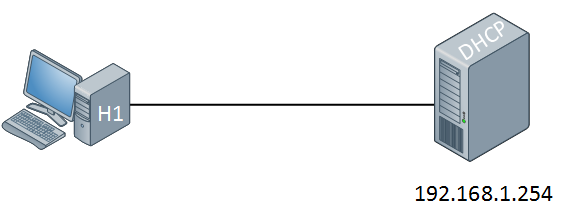
     IP addresses can be configured statically or dynamically. Normally we configure static IP addresses on network devices like routers, switches, firewalls and servers while we dynamically assign IP addresses to computers, laptops, tablets, smartphones etc. The dynamic method uses DHCP (Dynamic Host Configuration Protocol) and in this short article I want to show you how it works. Let’s take a look at the following picture:

    DHCP Topology

    On the left side we have a computer without IP address. On the right side there’s a DHCP server configured with static IP address 192.168.1.254. This DHCP server will supply an IP address to our computer, this is how it works:

    DHCP Discover

    The computer will send a DHCP discover message. This is a broadcast because it doesn’t have an IP address and it doesn’t know if there is a DHCP server on the network. Of course in our scenario we do have a DHCP server so it will respond to this broadcast as following:

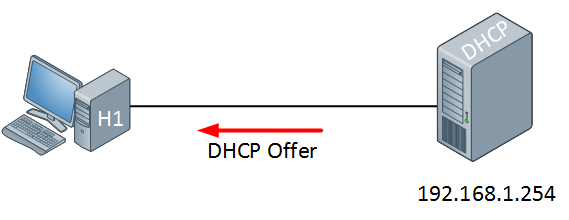
    DHCP Offer

    The DHCP server will respond with a DHCP offer message which contains an IP address for the computer (we have to configure the DHCP server to define which IP addresses we want to give). If we want we can also assign a default gateway and DNS server(s) to the computer. The computer will respond to this information:

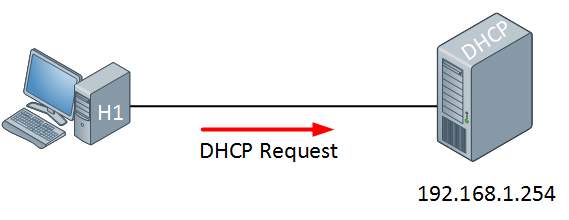
    DHCP Request

    The computer will send a DHCP Request in response to the DHCP offer message, asking nicely if it’s OK to use the information that it has received. Our DHCP server will respond to this as following:

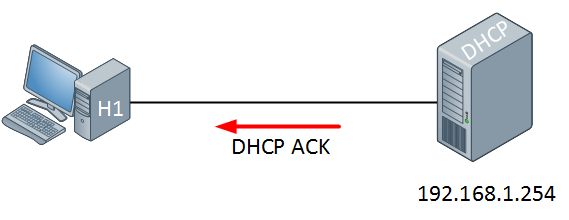
    DHCP ACK

    The DHCP server will respond with a DHCP ACK message to tell the computer it’s OK


    • Before installing WDS we have to create a new partition to hold our image files
      1. Open Server Manager
      2. Click Storage
      3. Click Disk Management
      4. Right click Unallocated
      5. Click Create New Volume
      6. Click Next
      7. Click Next
      8. Change drive letter to I
      9. File: NTFS
      10. Allocation: default
      11. Click Next
      12. Volume label: Images
      13. Check Perform Quick Format
      14. Click Next
      15. Click Finish
    pic1
    • Open Server Manager
      1. Click Roles in menu at top left
      2. Click Add Roles at right
    pic2
    • Check Skip this page by default
    • Click Next
    pic1
    • Select Server Roles
      1. Check DHCP
      2. Check Windows Deployment Services
      3. Click Next
    pic2
    • Overview of Windows Deployment Services
      1. Click Next
    pic3
    • Select Roles Services
      1. Click Next
    pic4
    • Check box next to 192.168.9.1
    • Click Next
    pic8
    • Specify IPv4 DNS Server Settings
      1. Parent Domain: Adatum9.com
      2. Preferred DNS Server IPv4 Address: 192.168.9.1
      3. Alternate DNS Server IPv4 Address: 192.168.9.2 (Virtual Server)
      4. Click Next
    pic6
    • Specify IPv4 WINS Server Settings
      1. Check radio button next to: WINS is not required for applications on this network
      2. Click Next
    pic7
    • Add or Edit DHCP Scopes
      1. Click Add
    pic8
    • Add Scope
      1. Scope Name: scope9
      2. Starting IP Address: 192.168.9.1
      3. Ending Ip Address: 192.168.9.10
      4. Subnet Mask: 255.255.255.0
      5. Default Gateway (optional): 192.168.9.1
      6. Subnet Type: Wired (lease duration will be 6 days)
      7. Click OK
    • Click Next
    pic9
    • Configure DHCPv6 Stateless Mode
      1. Check Disable DHCPv6 stateless mode for this server.
      2. Click Next
    pic10
    • Authorize DHCP Server
      1. Check Use current credentials
      2. Click Next
    pic11
    • Confirm Installation Selections
      1. Click Install
    pic12
    • Installation Results
      1. Click Close
    • Go to Start\Administrative Tools\DHCP
    • Click Properties
    • Click + beside of DHCP
    • Click + beside of IPv4
    • Right click Scope and choose Properties
    pic13
    • Click Advanced tab
    • Check Both
    • Click OK
    • How to exclude a range of ip addresses from the DHCP pool.
    • Right click the address pool
    • Click New Exclusion Range
    pic14
    • 192.168.9.1
    • 192.168.9.2
    • Click Add
    • Click Close
    • Close DHCP Window
    Read More
    Posted in | No comments

    Sharing Your Computer with Others Create a Homegroup

    Posted on 03:45 by Unknown

    Sharing Your Computer with Others : Create a Homegroup


    8/4/2013 9:41:41 AM

    You can share documents and media easily with other Windows 7 computers by creating a homegroup on your network. A homegroup simplifies network sharing by making it easy to create a homegroup and share documents, pictures, music, videos, and even printers.
    You use one Windows 7 computer to create the homegroup, and Windows 7 assigns a password for that homegroup. You then use the password to join your other Windows 7 computers to the homegroup. 
    Create a Homegroup
    1 Click Start.
    2 Click Documents.
    The Documents library appears.
    3 Click Homegroup.
    4 Click Create a homegroup.


    The Create a Homegroup Wizard appears.


    5 Click the check box for each type of file you want to share with the homegroup ( changes to ).
    6 Click Next(not shown).
    Windows 7 creates the homegroup.
    • The Create a Homegroup Wizard displays the homegroup password.
    7 Write down the homegroup password.
    • Alternatively, you can click this link to print the password.
    8 Click Finish.
    You can now join your other Windows 7 computers to the homegroup, as described in the next section.

    Simplify It

    I have lost my homegroup password. How do I view it again?
    Click Start, and then click Control Panel to open the Control Panel window. Under the Network and Internet heading, click Choose homegroup and sharing options to open the Homegroup window. Click the View or print homegroup password link to see your password. To print the password, click Print this page.
    Is it possible to change the homegroup password?
    Yes. Click Start, and then click Control Panel to open the Control Panel window. Under the Network and Internet heading, click Choose homegroup and sharing options to open the Homegroup window. Click the Change the password link and then click Change the password to generate a new homegroup password. If one or more computers have already joined the homegroup, you need to provide them with the new password.
    Read More
    Posted in | No comments

    Friday, 22 November 2013

    How to configure ftp server in windows

    Posted on 06:26 by Unknown

     FTP Server using IIS 7.0 and Windows Server 2008

    • Open Server Manager, go to Roles and click “Add Roles”
    1.png
    • In the Add Role Wizard, select Web Server (IIS) role to install
    2.png
    • Click Next until you reach Select Role Services page, leave the default and check FTP Server, FTP Service and FTP Extensibility at the bottom. Click Next, follow the wizard and finish the role installation.
    3.png
    • Now open IIS Manager from Start > Administrative Tools, expand the server, right click Sites, and click Add FTP Site, give it a site name and configure the physical path as needed.
    4.png
    • Configure Binding and SSL. In our case, we’d like to bind to all unassigned IP addresses and do not use SSL.
    5.png
    • Enable Basic Authentication and configure authorization. In our case I’ll start with allowing All users both Read and Write permission as long as all users on the server are password protected.
    6.png
    • Click Finish to finish the configuration.

    • Open Windows Firewall with Advanced Security from Start > Administrative Tools, go to Inbound Rules in the left pane, and create a new rule by clicking New Rule in the Action Pane, select Port and click next.
    7.png
    • Apply this rule to TCP port 21, and click Next
    8.png
    • Keep the default configure for the rest of steps to Allow the connection and apply it to all profiles, name the rule and finish the wizard.

    • Now the FTP should be up and running, please test the connection to confirm.
     =======================================================================

    How to Set up an Ftp Server on Windows Xp Professional

    Setting up an FTP server for Windows XP may be a little rough at first, but, with a little effort, you can have a nice FTP server your friends can grab files off of.

    Edit Steps

    1. 1
      First, you should start by retrieving your Windows XP CD.
    2. 2
      Next, click the Start button and go to the Control Panel.
    3. 3
      After that, select "Add/Remove Windows Components."
    4. 4
      Select "Internet Information Services" under "Windows Components."
    5. 5
      Click "details" and select the "File Transfer Protocol (FTP)" service. (Remember that this will also automatically select "Common Files" and "Internet Information Services Snap-In.")
    6. 6
      Click OK and follow the instructions for the install Wizard (or you can just push next if you don't feel like reading). Be prepared with your Windows XP CD, because it might prompt you for it if you haven't already installed it. Once it is done, you might have to restart your computer after this.
    7. 7
      After that, all you need to do is just paste the files you want to be public into "C:\INETPUB\FTPROOT." Note that by default, these files are read-only and public. Public meaning that anyone who knows the IP address may download copies from it.
    8. 8
      There's more to go! Now, you need to configure your router's firewall to let FTP traffic through. This can be done through your router's administration menu. Note that this will vary depending on your router.
    9. 9
      After letting your router firewall let FTP connections in, you will have to configure your regular firewall to let FTP connections in through a certain port.
    10. 10
      Finally, after done with everything, you may access your FTP site through your browser. All you need to do is type ftp://xxx.xxx.xxx.xxx/ in the URL where "xxx.xxx.xxx.xxx" is the WAN address of your computer.


    Read More
    Posted in | No comments
    Newer Posts Older Posts Home
    Subscribe to: Comments (Atom)

    Popular Posts

    • Block IP address with Windows Firewall 2008
      If you ever feel that someone may be trying to break into your server or know an IP address that you want to block from accessing ...
    • Windows Server 2008 Command-line Tool
      On an installed and running system the Windows command-prompt window may be accessed from the main panel of the Start menu. The command-pro...
    • Creating a Capture Image in WDS
      How to Create a Capture Image by Using WDS Console " A capture image is created from an existing boot image. You will create a new ca...
    • Configuring Windows Server 2008 Remote Desktop Administration
      Windows Server 2008 is, as the name suggests, a server operating system. In the real world this means that systems running Windows Server ...
    • SMTP Server Configure on Windows Server 2008 R2
      Installing the SMTP feature 1 . Click Start > Run and then enter servermanager.msc in the Open dialogue box then click OK to load Se...
    • Windows Deployment Services Configure in Windows Server 2008 r2
      How to use Windows Deployment Service  1.1 Introduction: Windows Deployment Service (WDS) is an enhanced and redesigned version of Remote I...
    • How to configure ftp server in windows
        FTP Server using IIS 7.0 and Windows Server 2008 Open Server Manager, go to Roles and click “Add Roles” In the Add Role Wizard, select Web...
    • configure Active Directory in Windows Server 2008 R2 Part-2
      Configure Active Directory At the Server Management screen you should now see that you have 1 role installed.  The Active Directory D...
    • VPN connection Configuring on server 2008 R2 using RRAS and configuring clients
      A virtual private network (VPN) is a network that uses a public telecommunication infrastructure, such as the Internet, to provide remote of...
    • FTP Server and its Commands
      What is FTP? The FTP ( F ile T ransfer P rotocol) utility program is commonly used for copying files to and from other computers. These co...

    Blog Archive

    • ▼  2013 (91)
      • ►  December (2)
      • ▼  November (10)
        • How To Activate Exchange Server 2010
        • Installing DHCP and Windows Deployment Services
        • Sharing Your Computer with Others Create a Homegroup
        • How to configure ftp server in windows
        • Networking questions answers, Ethernet - Q&A
        • Ethernet frame broadcast
        • Connect Visual Studio 2010 to Your TFS Preview Acc...
        • Add a user to the “Team Foundation Service Account...
        • Install Team Foundation Server (TFS) 2010
        • Create a new Team Project Collection
      • ►  October (5)
      • ►  September (15)
      • ►  August (26)
      • ►  July (1)
      • ►  June (5)
      • ►  May (14)
      • ►  April (5)
      • ►  March (1)
      • ►  February (1)
      • ►  January (6)
    Powered by Blogger.

    About Me

    Unknown
    View my complete profile